In my last article, I made the case for why unit tests and code reviews are valuable. In this one, I’m going to show you how to set up an automated system to enforce those principles. Before allowing a PR to be merged, we’re going to require someone to review it and that all unit tests have passed.
In 2001, a critical-care specialist at Johns Hopkins Hospital named Peter Pronovost decided to give [the checklist] a try…he and his team persuaded the hospital administration to authorize nurses to stop doctors if they saw them skipping a step on the checklist…
Pronovost and his colleagues monitored what happened for a year afterward. The results were so dramatic that they weren’t sure whether to believe them: the ten-day line-infection rate went from eleven per cent to zero. So they followed patients for fifteen more months. Only two line infections occurred during the entire period. They calculated that, in this one hospital, the checklist had prevented forty-three infections and eight deaths, and saved two million dollars in costs.
Since errors are likely, why not account for them? We can tell the computer to enforce a checklist of our own design.
There are 3 main parts to make this happen:
Set up Jenkins to build and test an iOS app
Get GitHub to hook into Jenkins to trigger builds and report test results
Configure GitHub to block a PR until all checks pass
Step 1: Set up Jenkins to build and test an iOS app
You’re gonna need Jenkins to be running on a Mac. If you can’t do that, bail now. 👋
Jenkins has a ton of plugins to make your life easier. The ones we want are:
GitHub, GitHub API, GitHub Authentication, and GitHub Pull Request Builder — for interacting with GitHub
JUnit — to report unit test results
Xcode Integration — to help us build our iOS app
To install plugins, go to the Home Page -> Manage Jenkins -> Manage Plugins. Then check the Available / Installed Tab. You might already have some of these installed!
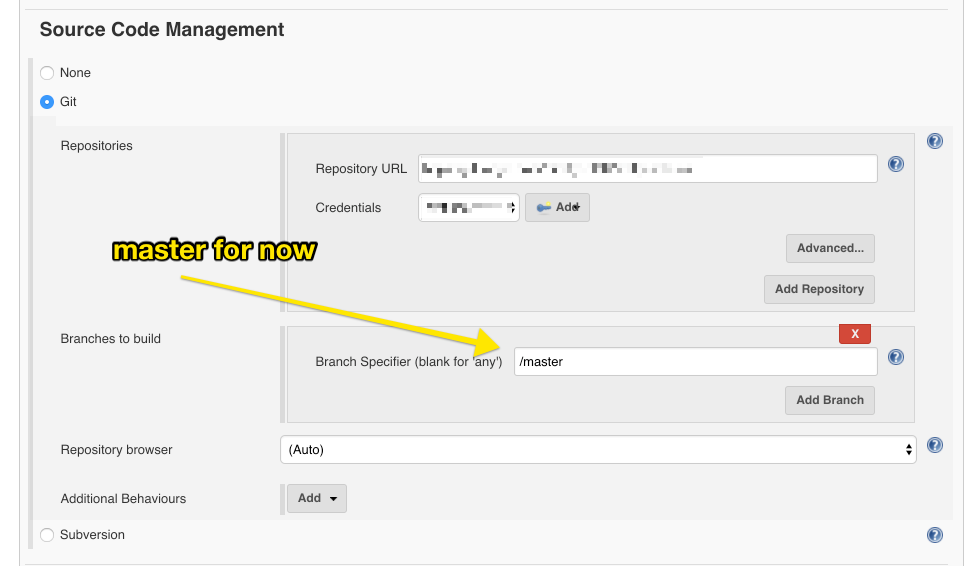
First, let’s build our app. Make a Freestyle job, then input your repo URL and credentials and specify your main branch:
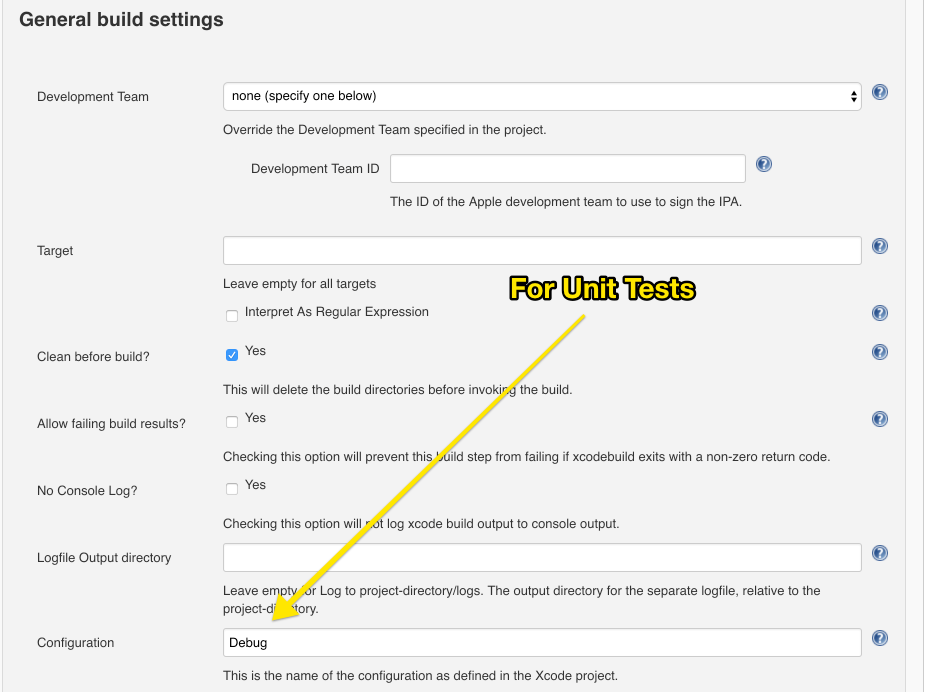
Next, cruise on down to the Xcode section and put these in for the general settings. What this plugin does is run xcodebuild in your project and makes it easy to configure parameters.
It’s good manners to clean before building
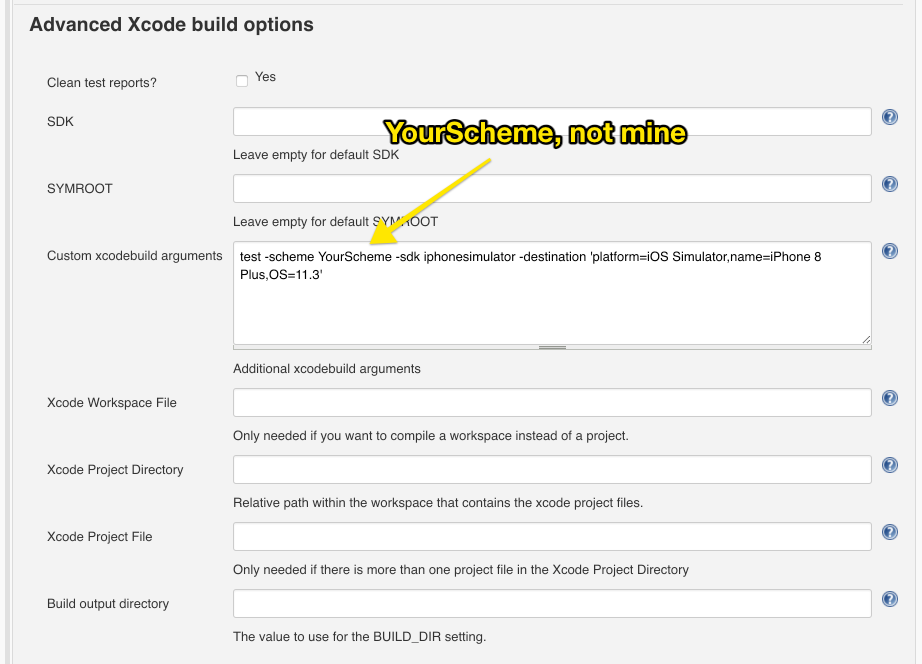
Now go to Advanced Xcode build options -> Advanced build settings
See that ‘destination’ parameter? That’s pointing to the particular device you want to test on. To get a list of devices available, run the following command in your terminal:
xcrun simctl list
I ran into an issue where my build server wasn’t updated yet. My app specified a deployment target of 11.4, but the devices on the server only supported 11.3. Changing the parameter to 11.3 won’t affect the build if .xcodeproj says you require 11.4 — (the answer is to not require such a high deployment target). More details on controlling simulators from the command line.
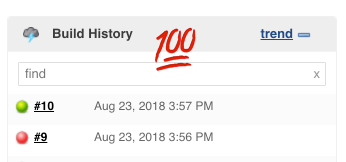
Make sure everything is working by clicking ‘Build Now’ on your job.
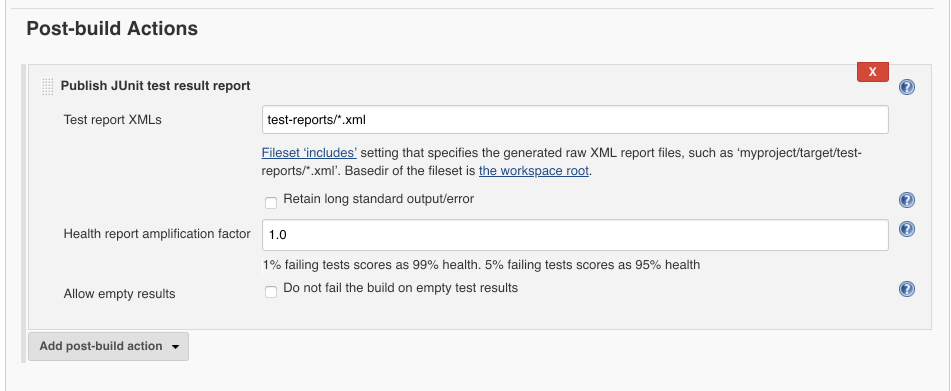
We’re doing that first because Jenkins gets mad if you try to specify the `test-reports` folder before it exists. Now go down to Post-build Actions and add a Publish JUnit test results report. Enter test-reports/*.xml
JUnit, not GUnit
Well done! Jenkins is all set up to test your app!
Step 2: Get GitHub communicating with Jenkins
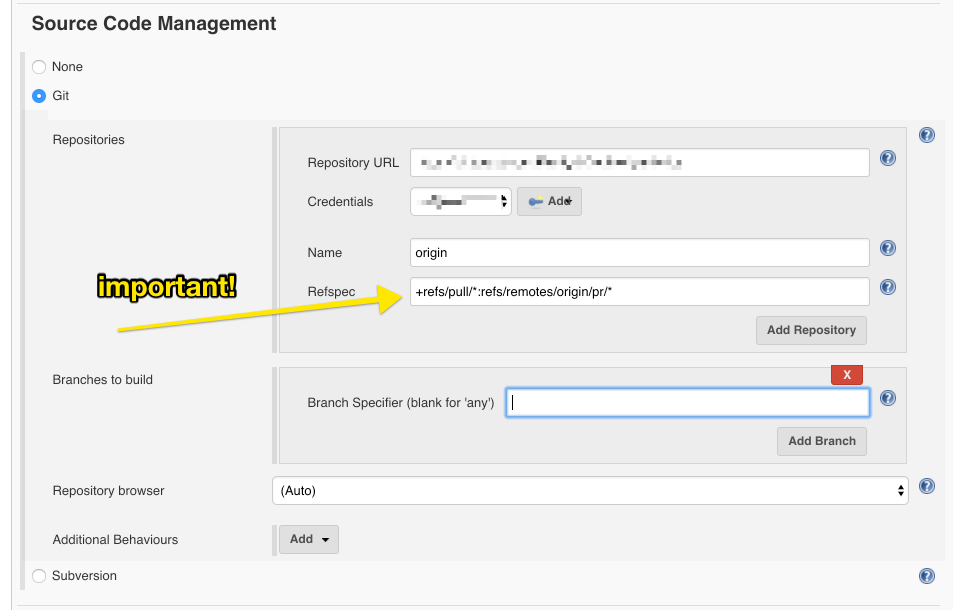
Remember how we told Jenkins to look for our master branch back in step 1? To play nice with GitHub, we want to tell it to look at all of the PR branches. Go back to the Source Code Management. Put origin in the ‘Name’ (remote name) and +refs/pull/*:refs/remotes/origin/pr/*in the ‘Refspec’. (You’ll have to click on ‘Advanced’ to open this section up.) Finally, be sure to remove master from the branch specifier.
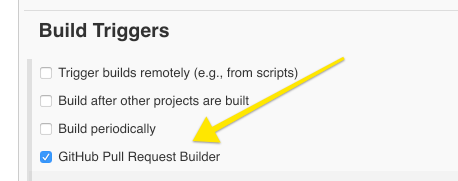
Under Build Triggers, select GitHub Pull Request Builder
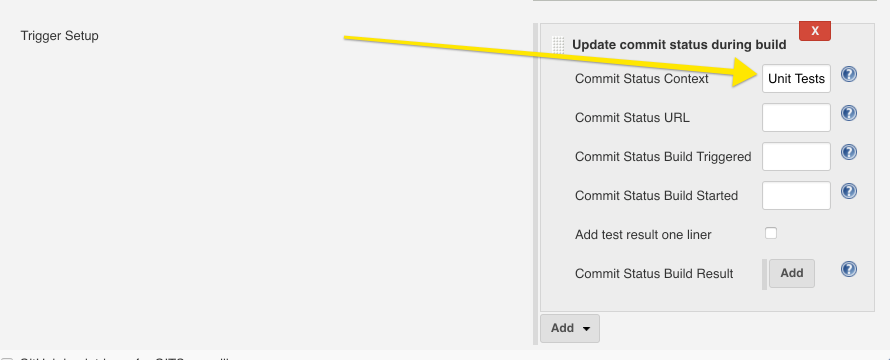
And under the Trigger Setup, add Update commit status during build and put in whatever label you want. (I chose ‘Unit Tests’)
Now it’s time to leave Jenkins and head over to GitHub. Assuming you have admin access, navigate to Settings -> Hooks in your repo. What’s really cool about GitHub is you can tell them to POST some JSON to wherever you like based on events taking place inside your repo. For example, you could receive a payload after every comment on your PR!
What we care about is running tests when code gets pushed. To do that, click ‘Add webhook’ and enter https://your-jenkins-server.com/github-webhook/
GitHub will send out a ping event to make sure your Jenkins server exists. Make sure it does! There’s no point in continuing if GitHub can’t communicate with Jenkins.
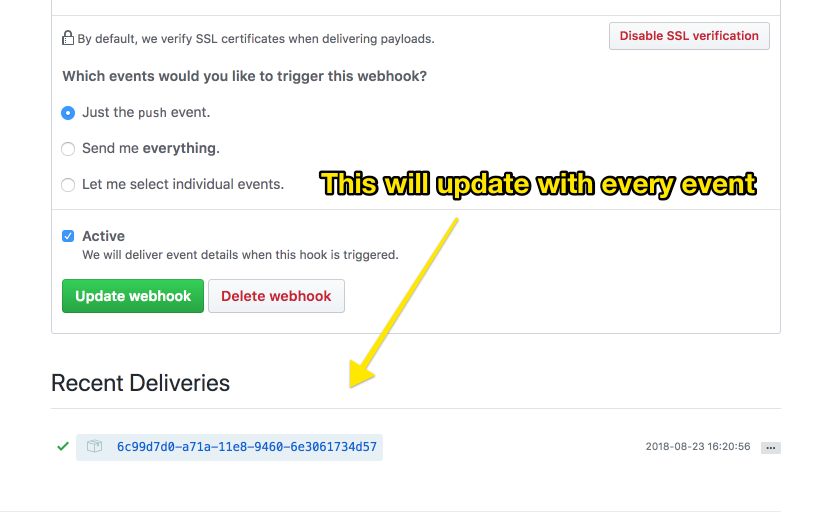
If you find yourself doubting if GitHub is actually trying to send events, go back to your Web Hook and look at the bottom. It lists out which events were sent and shows you the payload (by clicking on ‘…’) — very handy for debugging.
Now let’s test it out!
Create a new branch on your repo and push to GitHub. You should see a new payload in ‘Recent Deliveries’ (shown above) and see Jenkins kick off a build. Sometimes Jenkins can be a little slow to get going, so give it a couple minutes before declaring everything is busted.
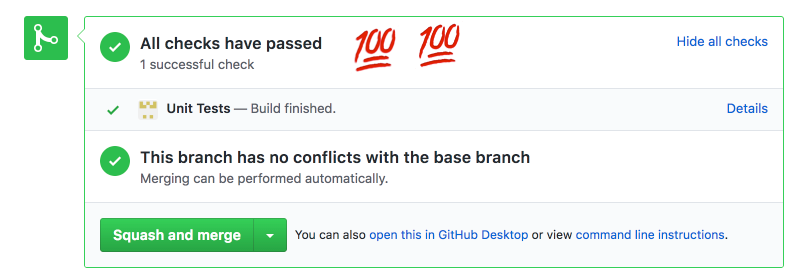
GitHub Success
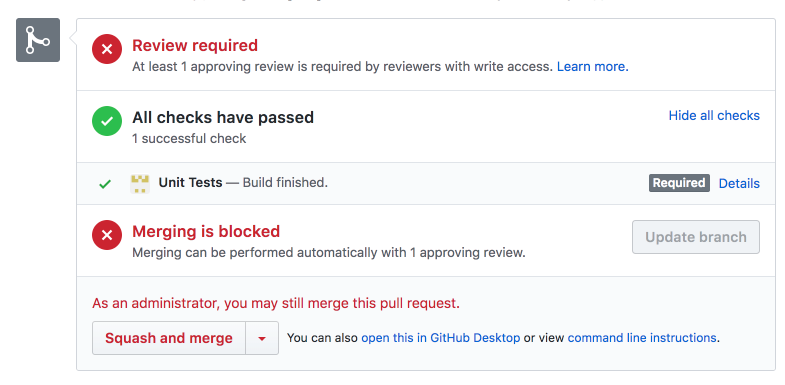
Step 3: Configure GitHub to block a PR until all checks pass
The final step is the easiest.
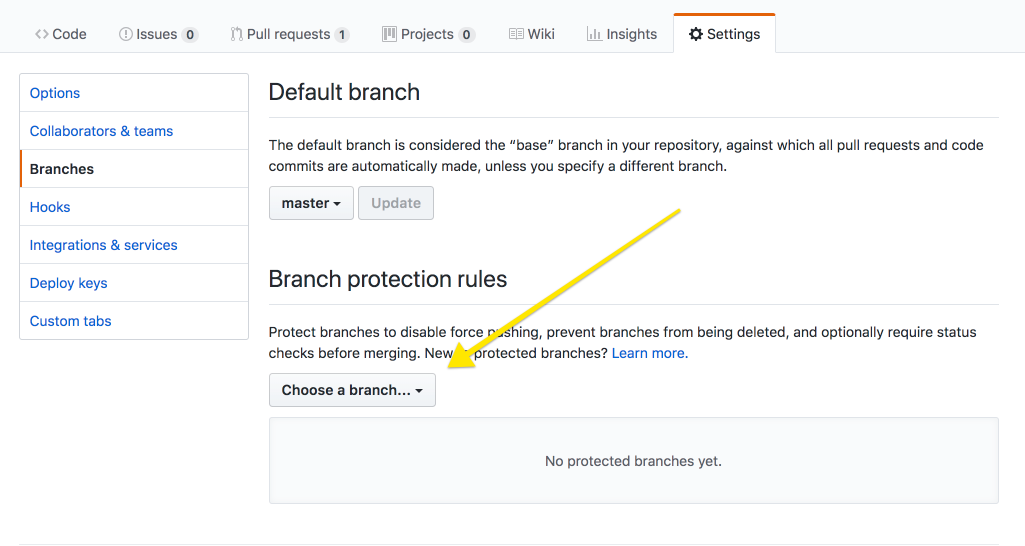
You can ‘protect’ a branch — which disallows merging until certain requirements are met.
Go into your repo’s Settings -> Branches and choose a branch to protect.
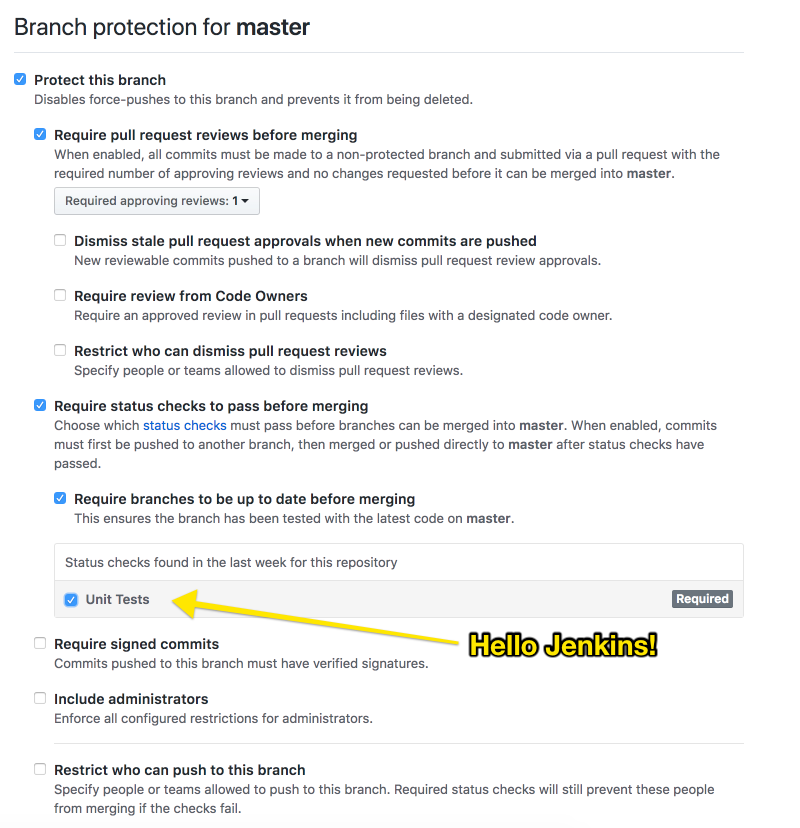
We specified that status check in Jenkins
I like to require at least 1 reviewer, require the branch be up to date, and have all unit tests pass. You can always override and force a merge as an administrator if you really want to (pro-tip: don’t do it).
Now to find someone to review my ‘Test please ignore’ PR…
Your master branch is now protected, and you’re safe from easily made mistakes. Thank you GitHub/Jenkins for keeping us honest.
Sean tries to hold himself to his own standards at Livefront.
原文链接 One code signing issue I commonly see, both here on DevForums and in my Day Job™ with DTS, is that the codesign command fails with errSecInternalComponent. This issue crops up in a wide variety of circumstances and the correct fix depends on the specific problem. This post is my attempt to clarify the potential causes of this error and help folks resolve it. If you have any questions or comments about this, please start a new thread, tagging it with Code Signing so that I see it. Share and Enjoy — Quinn “The Eskimo!” @ Developer Technical Support @ Apple let myEmail = "eskimo" + "1" + "@" + "apple.com" Resolving errSecInternalComponent errors during code signing In some circumstances the codesign command might fail with the error errSecInternalComponent. For example: % codesign -s "Apple Development" "MyTrue" MyTrue: errSecInternalComponent This typically affects folks who are signing code in a nonstandard environm...



评论
发表评论